

The short answer
Is it safe to connect AI to Gmail? It can be, if you know what you're allowing. Read Google's permission screen before you click Allow, give the tool the least access the job needs, keep sending behind your own approval, and check your linked apps page so you can take access back.


Published Last updated
What happens when you connect AI to Gmail
Most AI apps that connect to Gmail show you a Google screen that lists what they're asking for, with an Allow button at the bottom. Once you click it, the app usually keeps that access until you or your admin take it back. It doesn't end when the trial does or when you stop opening the app. Google cuts it off only in a few cases, such as when you change your password.
Most people click through that screen without reading it. It's the one moment you have the whole picture in front of you, so it's worth reading. Google's own list of Gmail permissions (opens in a new tab) describes each one in a line, and the differences between the lines matter.
- "View your email messages and settings." The app can read everything in the mailbox but can't send or delete.
- "Manage drafts and send emails." This one surprises people. Permission to write drafts also lets the app send them.
- "Send email on your behalf." The app can send as you, to anyone.
- "Read, compose, send, and permanently delete all your email from Gmail." Full control of the mailbox, including deleting mail for good.
The question to ask before you connect AI to Gmail
What does this tool actually need to do for me? If it summarizes your inbox, it needs to read. If it drafts replies for you to send, it needs drafts, and you now know that comes with sending. Full control is almost never what a summary or a draft needs, so if a tool asks for it, ask the vendor why before you go further.

Is it safe to connect AI to Gmail? What can actually go wrong
The tool itself is usually fine. The trouble comes from how much it can do and how long nobody looks at it. Here's what can go wrong in a small business.
- A reply goes to a client with the wrong price, the wrong name or a thread it should never have quoted, because the tool could send without anyone reading it.
- An email from outside carries instructions written for the AI, and the AI follows them.
- Someone leaves the company, their account stays open, and the AI app they connected keeps reading that mailbox for months.
- The vendor keeps copies of your mail on its own servers, under terms nobody at your company read.
Emails that talk to the AI
Anything that lands in your inbox can contain text aimed at an AI reader instead of you, which is called prompt injection. NIST's AI standards team reported in January 2025 (opens in a new tab) that new attacks of this kind raised the success rate against an agent from 11% to 81% in its tests. A tool that can only read is limited in what it can do with a planted instruction. A tool that can also send can be told to forward your mail somewhere.
Access that's broader than the job
The joint guidance from the cyber agencies of Australia, the United States, Canada, New Zealand and the United Kingdom, Careful adoption of agentic AI services (opens in a new tab), gives an email assistant with write access to any inbox as one of its two examples of overly broad permissions. Its advice is to limit an agent's privileges to the minimum its task requires.

Before you click Allow: eight things to check
This takes about ten minutes the first time, and it's the same list every time you connect AI to Gmail, whatever the tool.
What Google's warnings and checks mean
Google says on its unverified apps page (opens in a new tab) that users of unverified apps might get warnings based on the access the app asks for, and that this is to protect users and their data from deceptive apps. For the most sensitive Gmail access, Google's verification rules (opens in a new tab) say an app that reaches your data through its own servers must pass an annual security assessment by an independent assessor that Google approves. Passing that is a good sign. It doesn't tell you what the vendor does with your mail, which is why the privacy policy is still on the list.
- Name the job. Write one sentence about what the tool will do for you, so you can judge whether the access matches.
- Read every line on the Allow screen. Match each permission to the job. Reading and sending are different jobs, and drafts include sending.
- Start with read-only access. If the tool offers a read-only mode, start there and add more only after it has earned it.
- Stop at an unverified app warning. If Google warns that the app isn't verified, don't connect a work account to it.
- Read the vendor's privacy policy. Find out what it stores, for how long, and whether your mail is used to train its AI.
- Keep sending with a person. Let the tool draft. Read each message yourself before it goes to anyone outside the business.
- Use a work account your business controls. Connect company tools to company accounts, so the business can see them and take them back.
- Put a review date in the calendar. Check your linked apps page every quarter and remove anything nobody uses.

If you run Google Workspace for the business
Here's the setting most owners have never seen. Google's admin help on app access (opens in a new tab) says the default for apps you haven't reviewed is "Allow users to access any third-party apps." Unless someone changed it, anyone on your team can connect AI to Gmail on their work account without asking, which is how shadow AI gets into a company.
In the Admin console you can mark each app you know about as Trusted, Limited, Specific Google data or Blocked. Google describes Blocked as an app that can't access any Google service. It also notes that Gmail, Google Drive, Docs and Chat can restrict access to a predefined list of high-risk permissions.
Let staff ask instead of connecting AI to Gmail on their own
On August 14, 2025, Google added an approval workflow (opens in a new tab) so users can request access to third-party apps their admin hasn't reviewed, and said it's available to all Google Workspace customers. That gives you a middle path. Turn off the open default, let people request the tools they want, and approve the ones that pass the eight checks above. People keep using the tools that save them time, and you know which ones they are.
How to take access back
Google's help page on linked apps (opens in a new tab) walks through it. Go to your Google Account's linked apps page, pick the app, select See details to review the access it has, then select Remove access and confirm. Google also says that if you remove an agent's permission to interact with an app, that agent will no longer be able to complete tasks for you using that app.
Removing access stops the app from reaching your mail from then on. Google's page says nothing about copies the vendor already made, so ask the vendor to delete your data, and close the account with them. When someone leaves the company, add this to the checklist for their accounts. For a full walkthrough across Google and other apps, see how to disconnect AI tools.

Connecting AI to Gmail in Massachusetts
If your mailbox holds personal information about Massachusetts residents, such as names with account or license numbers, the AI vendor you connect becomes a service provider under 201 CMR 17.00. 201 CMR 17.03 (opens in a new tab) requires you to take reasonable steps to select providers that can protect that information, and to require them by contract to do so. 201 CMR 17.04 (opens in a new tab) requires businesses that store or send that information electronically to restrict access to it, as far as technically feasible, to those who need it to do their jobs.
In practice, that means reading the vendor's security terms before you connect AI to Gmail, keeping its access to what the job needs, and recording the tool in your written program as one of your service providers. Amelia, my wife and co-founder, covers what that program needs in Massachusetts WISP requirements under 201 CMR 17.00 (opens in a new tab).
How LTFI handles email
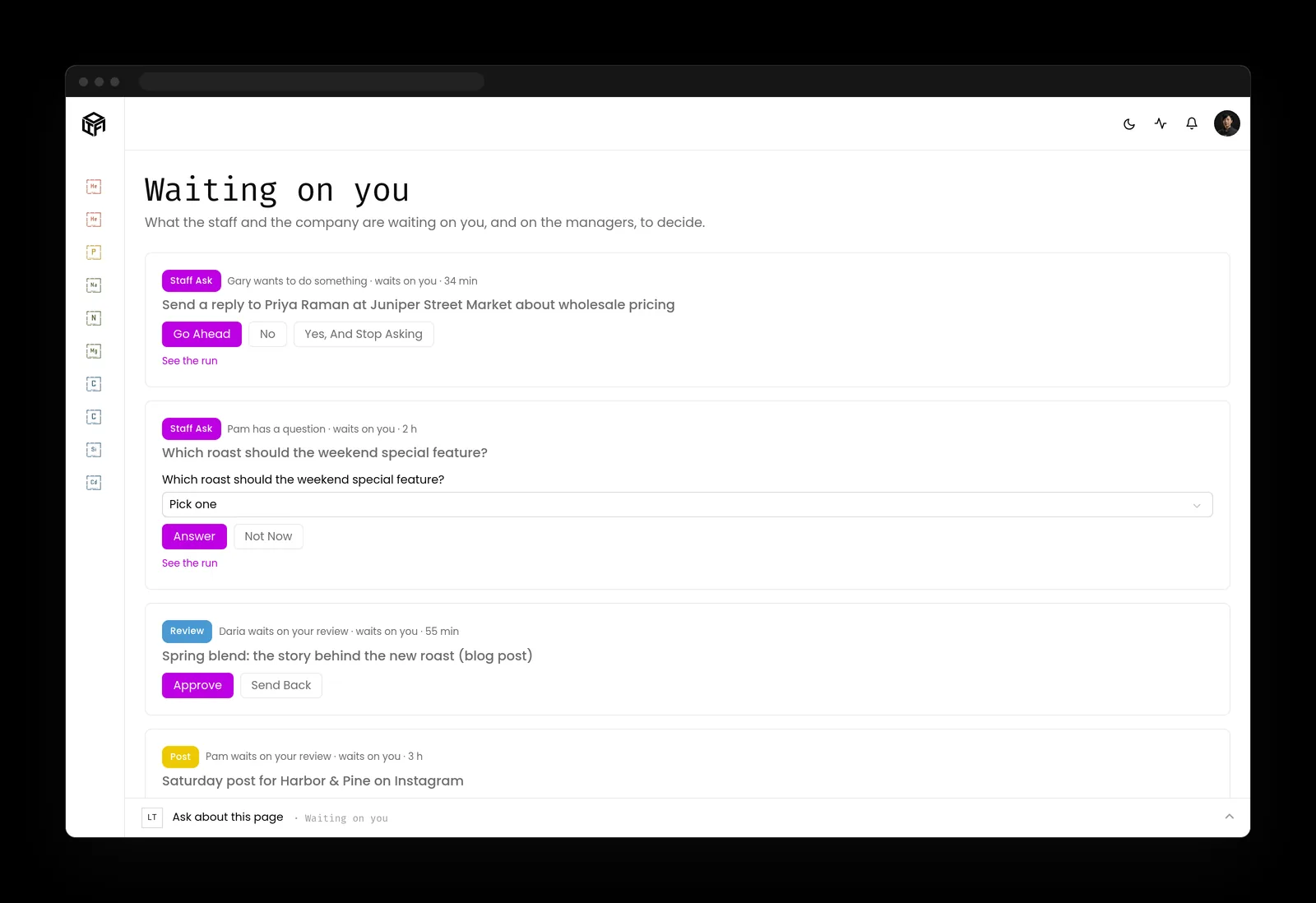
LTFI is the agentic business operating system Kief Studio makes and runs. Its AI staff draft replies, and the person who owns that inbox decides what goes out. The page on AI staff with approvals shows how.
- By default, nothing is sent until a person presses Go ahead.
- Everything waiting lands in one queue, Waiting on you, which works on a phone.
- Standing approvals for one kind of routine message are yours to give, and you can see them and take them back at any time.
- Permissions and credentials stay with people, and the activity log records every action with who said yes.
What to do before you connect AI to Gmail
Two lists: one for the person who owns the business, one for whoever runs its systems.
If you own the business
- Ask your team which AI tools are connected to their work email, and write the list down.
- Decide what staff may do when they connect AI to Gmail: reading, drafting, or sending with approval.
- Make reading the vendor's privacy terms part of saying yes to any new tool.
- Put a quarterly review of connected apps on someone's calendar.
If you run the systems
- Change the default for unreviewed apps in the Admin console, and check that access requests are on so staff can ask for the tools they want.
- Mark known AI tools as Limited or Specific Google data, and block the rest.
- Restrict the high-risk Gmail permissions to apps you have reviewed.
- Remove connected apps as part of every departure checklist.
Key takeaways
- Before you connect AI to Gmail, read the Allow screen. It lists what the app is asking for, and drafting permission includes sending.
- Start with reading, keep sending with a person, and add access only when the tool has earned it.
- Google Workspace lets anyone connect any app until an admin changes the default.
- Removing access stops future reading, so ask the vendor to delete what it kept.
Where this lines up with the standards
The frameworks and rules this page maps to, with the exact item and what it asks of you.
| Framework | Item | What it asks |
|---|---|---|
| Joint agency guidance | Careful adoption of agentic AI services (opens in a new tab) | Limit an email assistant to the minimum access its task needs, and keep a person approving high-impact actions. |
| OWASP Top 10 for LLM Applications | LLM06 Excessive Agency (opens in a new tab) | Grant the narrowest permissions and avoid tools that can send or delete when they only need to read. |
| OWASP Top 10 for LLM Applications | LLM01 Prompt Injection (opens in a new tab) | Treat every incoming email as untrusted content that may carry instructions for the AI. |
| Google Workspace | Control which apps access Google Workspace data (opens in a new tab) | Review each app, change the open default, and restrict high-risk Gmail permissions. |
| Massachusetts | 201 CMR 17.03 and 17.04 (opens in a new tab) | Oversee the AI vendor as a service provider by contract, and limit access to personal information to those who need it. |