

The short answer
To disconnect an AI app, remove its access in every account it touched: your Google Account's linked apps page, Slack's Installed Apps, and any other connected apps. Then close your account with the app, cancel the subscription, and ask the company in writing to delete the data it already copied, because removing access doesn't erase it.


Published Last updated
Why you should disconnect an AI app you've stopped using
Most of us try an AI tool, connect it to email or a shared drive so it can help, and then move on. The connection usually stays behind. When you clicked Allow, you gave it access that lives in your account, and for a tool that keeps using it, that access stays in place until someone takes it back. A note-taker you tested last spring may still be able to read the calendar today.
How much it can do depends on what you agreed to. Google's developer documentation lists the permissions an app can ask for, and its list of Gmail permissions (opens in a new tab) includes one that lets an app "read, compose, send, and permanently delete all your email from Gmail." A tool with that much access is worth five minutes of your time, even if nobody has opened it in months.
This is the step after you stop using a tool. If you're still deciding whether to connect one, start with is it safe to connect AI to Gmail instead.
What can go wrong when nobody disconnects an AI app
The risk isn't that a forgotten tool wakes up and misbehaves. It's that the company behind it is breached, sold or careless, and the access you gave it becomes someone else's way in. In September 2025 the FBI published a FLASH alert (opens in a new tab) about a case like that. It describes "an AI chatbot" that businesses could connect to a widely used customer records platform. Attackers used stolen access from that connection to get into businesses' records and take data, until the chatbot's maker and the records platform cut off every connection on August 20, 2025. The FBI's advice afterwards was to review all third-party integrations and replace their keys and passwords.
Inside a small business, the everyday versions look like this: a former employee's AI assistant still reading the shared inbox, a free scheduling tool that can still see every client meeting, or a writing app that kept a copy of last year's proposals. Each of these can cause a problem without any attacker, simply because nobody remembered the tool was still connected.
Before you disconnect an AI app, make a short list
Give yourself ten minutes and a notepad. To disconnect an AI app properly you'll work through each place it could have been connected, so it helps to know what you're looking for.
- The tool's name, and the email address someone used to sign up for it.
- Who in the business connected it, and whether that person still works with you.
- What it was connected to: email, calendar, files, Slack, your website, your accounting.
- Whether anyone still needs it. If someone does, it stays, and it gets an owner.

Step one: remove third-party app access in Google
Google keeps everything you've allowed in one list. Its help page on linked apps (opens in a new tab) says you can "review or remove the linked apps that have some access to your Google Account data at any time," and it links straight to that list at myaccount.google.com/linkedapps. This is the page people mean when they search for how to remove third-party app access Google gives out.
What happens when you disconnect an AI app in Google
Google's page on managing linked apps (opens in a new tab) is short and clear about it: "If you remove access, the app can't access your Google Account." The same page says the separate Sign in with Google step "doesn't delete your data on the app." Those are two different switches, so turn off both.
The page also covers AI agents that act for you inside other apps. It notes that "removing an agent's access does not disconnect or delete your Google Account's link with that app." If a tool appears in more than one category on your linked apps page, remove it from each one.
If your business uses Google Workspace
An admin can see more than any one person can. Google's admin guide, Control which apps access Google Workspace data (opens in a new tab), shows lists of configured apps, accessed apps and apps pending review, with the number of people using each app and the Google services it reaches. From there you can mark an app Blocked, which means "App can't access any Google data," for everyone at once.
It's worth knowing the starting point. The same guide says the default for apps you haven't configured is "Allow users to access any third-party apps." Unless someone changed it, anyone on your team can connect a new AI tool to their work account without asking.
- Open your linked apps page. Sign in to the Google Account the tool used and open myaccount.google.com/linkedapps.
- Look under Access to your Google Account. That's the list of apps that can read or change your Google data, such as mail, calendar and files.
- Choose the app and remove access. Select the app, choose See details, then Remove access, and confirm.
- Check Sign in with Google too. If you signed in to the tool with your Google login, choose Stop using Sign in with Google for it as well.
- Repeat for every account. Do the same in each Google Account the tool touched, including shared and old staff accounts.
Step two: remove an app from your Slack workspace
Slack works differently from Google, because apps are installed into the whole workspace. Slack's help article, Remove apps and custom integrations from your workspace (opens in a new tab), gives the path: click your workspace name, choose Tools & settings, then Manage apps, then Installed Apps. Find the app, open App Details, go to the Configuration tab, and choose Remove App. That's how you disconnect an AI app from Slack for the whole team.
If you only want to revoke an app's access for one person, the same Configuration tab has a section called Authorizations. Under Authorized members, choose See all, then Revoke next to the setup you want to end. Slack describes the choice as removing an app "entirely from your workspace" or choosing to "disable individual authorizations."
Why you might not see the Remove App button
Slack lets Workspace Owners restrict who can install and remove apps. If app approval is turned on, Slack says "only Workspace Owners and app managers will be able to remove apps." Its own advice when the option is missing: "contact a Workspace Owner for help." That's a good setting to have on, so it's worth knowing who your owner is before you need them.
Step three: close the account in the app itself
Removing access in Google and Slack stops the tool from reaching in. It doesn't touch what the tool already took out, and it doesn't close your account with the company that makes it. Google's linked apps page (opens in a new tab) says it directly: "You may need to contact the developer of the app to request that they delete the data they already have."
So the last part of how you disconnect an AI app happens on the tool's side. Sign in to the AI app, look under its settings for connected apps or integrations, and remove anything still listed there. Then cancel the subscription and delete the account. Cancelling stops the bill. It doesn't, by itself, ask the company to delete anything, which is why the next step exists.
How to write a deletion request
Send a short email to the company's privacy or support address, from the account owner's email, and keep a copy. You don't need legal wording. Something like this works:
- Name the account: the email address it was registered under and your business name.
- Say what you want: delete all data the app collected from our Google, Slack and other connected accounts, including any copies, summaries and backups it made.
- Ask for proof: a written confirmation when it's done, and the date.
- File the reply with your records, next to the date you removed access.

When someone who connected AI tools leaves
This is where forgotten connections pile up. A person signs up for a few tools with their work login, connects them to the shared inbox or drive, and leaves. Their own account gets switched off, but tools they connected to shared accounts, or keys they created, can keep working if nobody looked for them.
OWASP, the open security community, ranks this first in its list of risks for software logins. NHI1 Improper Offboarding (opens in a new tab) describes access that stays live after it's no longer needed, and warns that if "the credentials are not revoked or rotated," a former employee can still get in. Its advice is to review every connection tied to the person who's leaving, turn off what's no longer needed, and hand the rest to a new owner.
- Add one line to your leaver checklist: disconnect an AI app or tool the person connected, in Google, Slack and the tool itself.
- Ask the person before their last day which tools they connected. They'll know, and they'll usually tell you.
- If a tool is still needed, move it to a shared account with a named owner, then reconnect it.
- Change any shared passwords the person knew, including ones they may have pasted into an AI tool.

A quarterly access review that takes ten minutes
Offboarding AI tools gets much easier when it isn't a once-a-year cleanup. A short access review each quarter keeps the list small enough to read. The owner or office manager opens the same pages each time and asks the same question of every app: does someone here still use this, and do they know it's connected? If the answer is no, disconnect an AI app like that on the spot.
- Google: the linked apps page for each person, or the admin's accessed apps list for the whole business.
- Slack: Installed Apps, and the authorized members of anything that reads messages.
- Everything else you sign in to with a Google or Slack login, such as accounting, scheduling and your website.
- For each one: keep it with a named owner, or disconnect it today.
Who should disconnect an AI app nobody owns
The owner of the account it's connected to. If it's the shared inbox, that's whoever runs the inbox. If you ask around and nobody claims it, disconnect it. Someone who still needs it will tell you, and you can reconnect it with an owner. I cover how to find tools people connected without telling anyone in shadow AI.

Why this matters for Massachusetts businesses
If you hold personal information about Massachusetts residents, 201 CMR 17.00 (opens in a new tab) already requires a written security program. Section 17.03 requires you to keep terminated employees out of records that hold personal information and to take reasonable steps to choose service providers that can protect it. The company behind an AI tool that can read client email may count as one of those providers. Removing it when the job ends, and keeping the deletion request on file, is good evidence that you oversee your service providers. For what the written program needs to include, see this guide to Massachusetts WISP requirements (opens in a new tab).
How LTFI makes it easier to disconnect an AI app
LTFI is the agentic business operating system Kief Studio makes and runs. Its AI staff work on the same records as your team, in one place, so the AI can help with all of it instead of one app at a time. Where they do act, a person stays in charge.
- Anything that sends, posts, publishes or spends waits for the person who owns it, unless you've given a standing approval for that kind of work.
- Rules, permissions, credentials, deleting and money stay with people. An AI teammate can't change them.
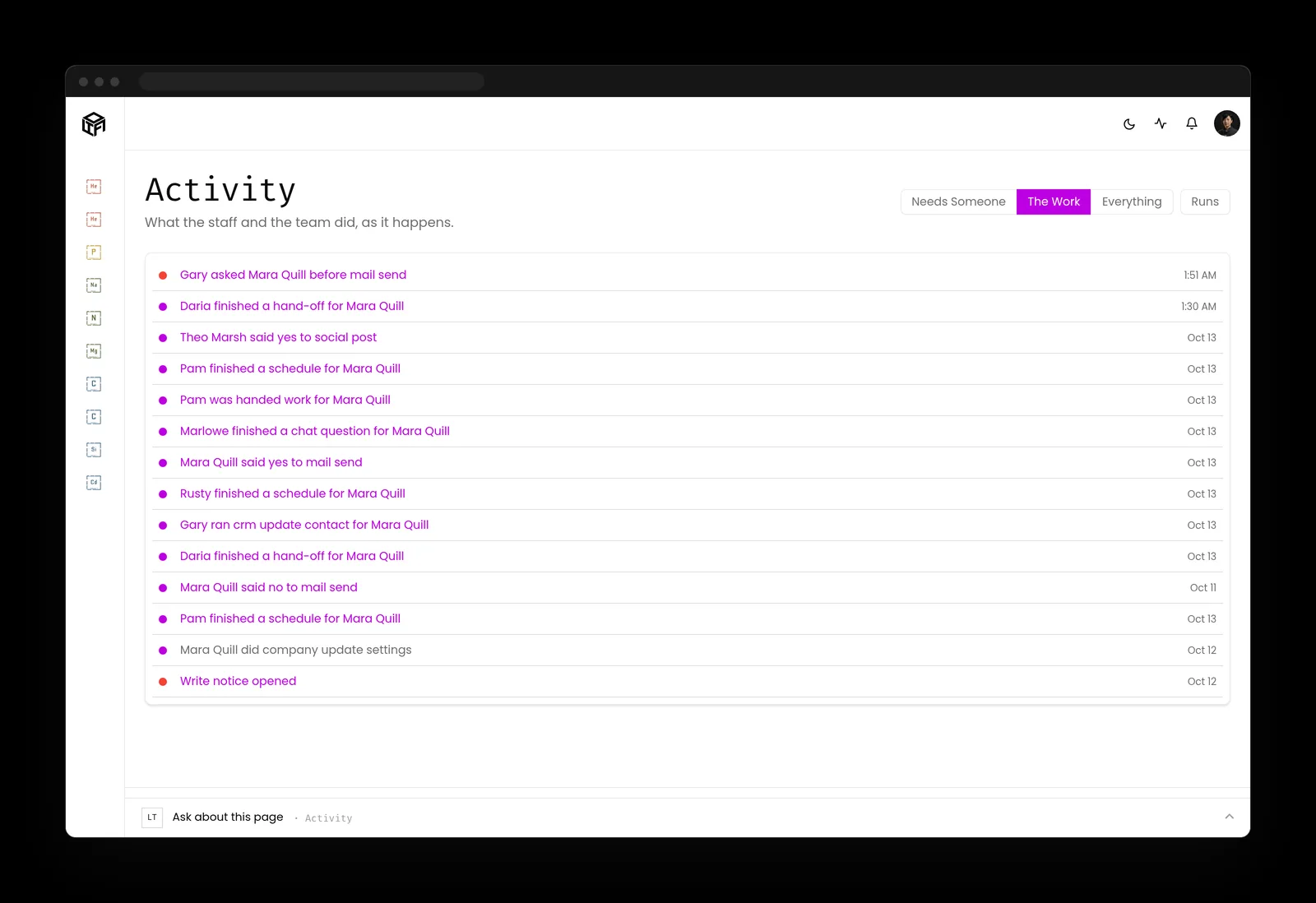
- The activity log records every action by the staff and the team, newest first, with who approved it, so you can see what happened before you switch anything off.
- Standing approvals are yours to give for one kind of work and take back at any time.
- Your company runs on its own server, and your AI runs on keys you own, under your contract with the AI company.
Disconnect an AI app you don't use this week
Two lists: one for the person who owns the business, one for whoever runs its systems.
If you own the business
- Open your own linked apps page today and remove anything you don't recognize or don't use.
- Ask each person on the team to do the same, and to tell you what they kept.
- Add AI tools to your leaver checklist, with a deletion request for anything you remove.
- Put a ten-minute access review on the calendar once a quarter.
If you run the systems
- Review the accessed apps list in the Google admin console and block anything without an owner.
- Turn on app approval in Slack so only Workspace Owners and app managers can remove apps.
- Replace any shared keys or passwords a removed tool held.
- Keep a record of each removal: the app, the date, who removed it and the deletion confirmation.
Key takeaways
- To disconnect an AI app, remove its access in Google, Slack and every other account it touched.
- Removing access stops new reading. It doesn't delete what the app already copied, so send a deletion request.
- Make AI tools part of every leaver checklist, because connections often outlast the person who made them.
- A ten-minute access review each quarter keeps the list short and every app owned.
Where this lines up with the standards
The frameworks and rules this page maps to, with the exact item and what it asks of you.
| Framework | Item | What it asks |
|---|---|---|
| OWASP Non-Human Identities Top 10 | NHI1 Improper Offboarding (opens in a new tab) | Turn off access that is no longer needed, and review every connection tied to a person who leaves. |
| OWASP Top 10 for LLM Applications | LLM06 Excessive Agency (opens in a new tab) | Limit the extensions an AI system can call to the minimum, and remove ones that were replaced. |
| NIST Cybersecurity Framework 2.0 | PR.AA-05 (opens in a new tab) | Define, manage and review access permissions with least privilege. |
| FBI FLASH alert | Third-party integration review (opens in a new tab) | Review all third-party integrations, and replace keys and passwords for each one. |
| Massachusetts | 201 CMR 17.00 (opens in a new tab) | Keep former staff out of personal information, oversee service providers, and review security at least annually. |